Platform Updates: February 2026
Edit Multiple Rows at Once
Building manual operating models in Mosaic is now faster and more efficient. Following the numerous operating model updates introduced in November, Mosaic now supports copying, deleting, and moving multiple rows at the same time, with controls that will feel familiar to Excel users.
To select a group of rows, hit Shift and select the first row you'd like to highlight. Then, hit shift again and select the last row of the highlighted rows. This will allow you to complete actions on the entire group of rows selected. For example, if you’d like to copy a group of rows, you can simply hit CTRL + C and then CTRL + V to paste. To unselect, simply click anywhere on the screen. To Delete rows, hit CTRL + “-“.
To group rows together, click CTRL and select each row you'd like to include in the group. You can perform the same functions on grouped rows (copying, pasting, and moving) and the rows will stay grouped together.

Sensitivity Tables Now Export to Excel
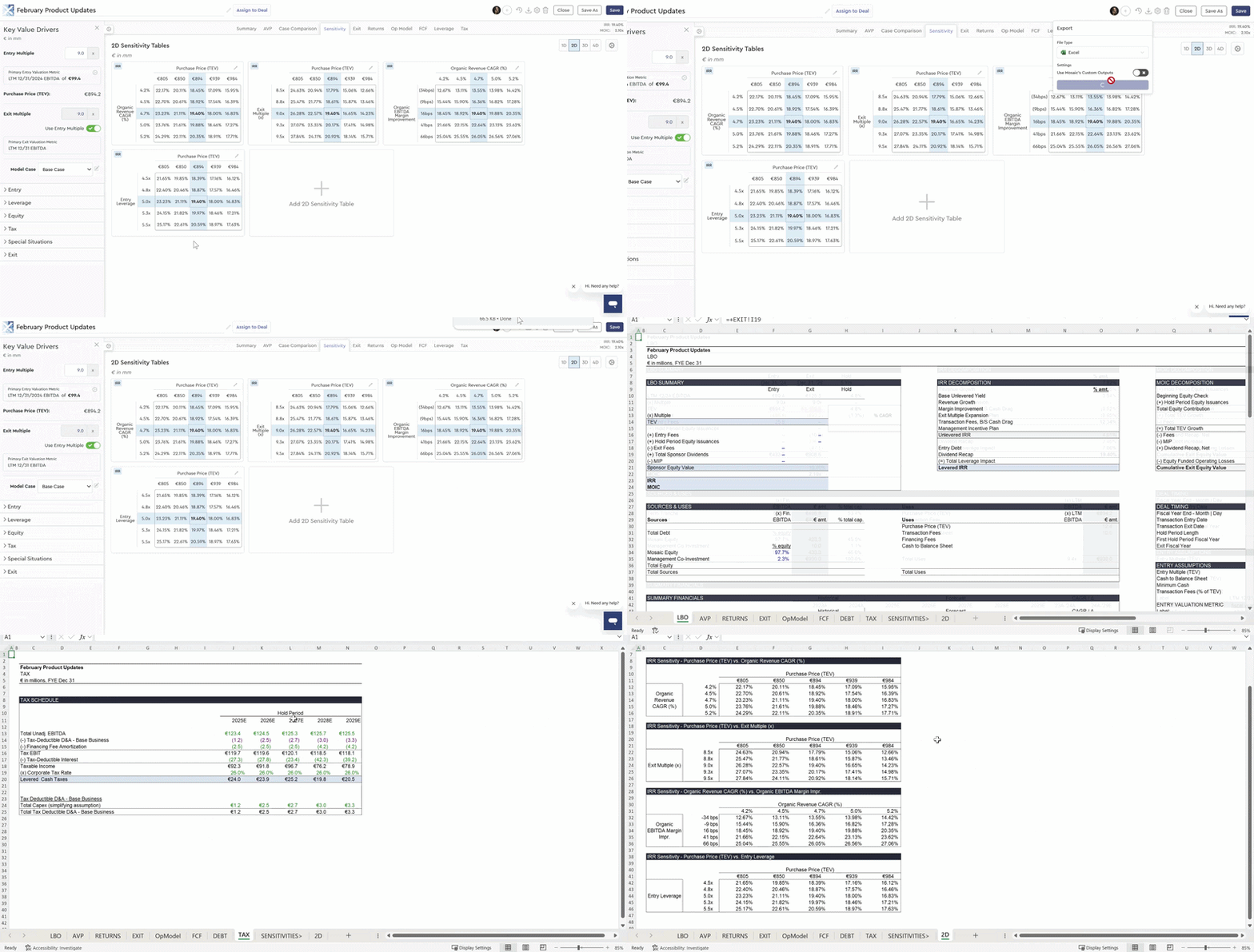
All Mosaic sensitivity tables, from 1D through 4D, now export directly into Excel as hardcoded outputs. This means you can immediately reformat, customize, and layer in bespoke memo lines for IC materials without rebuilding the analysis.
Dynamic Excel data tables are coming next—stay tuned!
Dynamic Filtering for Models
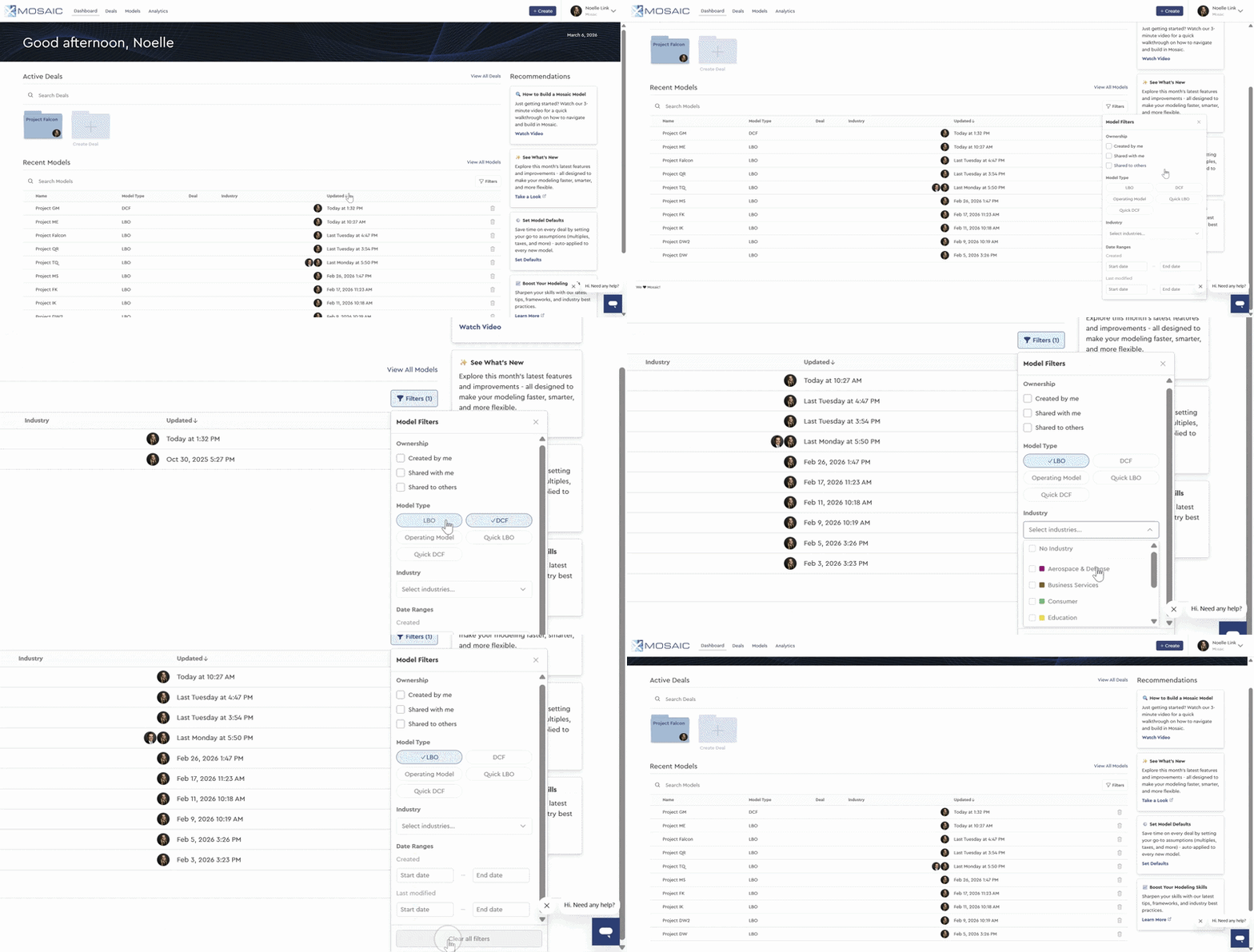
Models saved within Mosaic’s Library can now be easily filtered directly from the Dashboard page in the app. Users can refine their view by:
Ownership – Quickly see models and deals you have created, shared with you, or shared with others across the organization.
Model Type – Filter by each model type including LBO, DCF, Operating Model, Quick LBO, and Quick DCF.
Industry – Sort by industry classification to find relevant models faster.
Custom Date Ranges – Define flexible date parameters to surface models created or updated within a specific timeframe.
These filters make it significantly easier to locate specific models and navigate the Mosaic model library with greater efficiency.
Input a Simple WACC Directly in the DCF Wizard
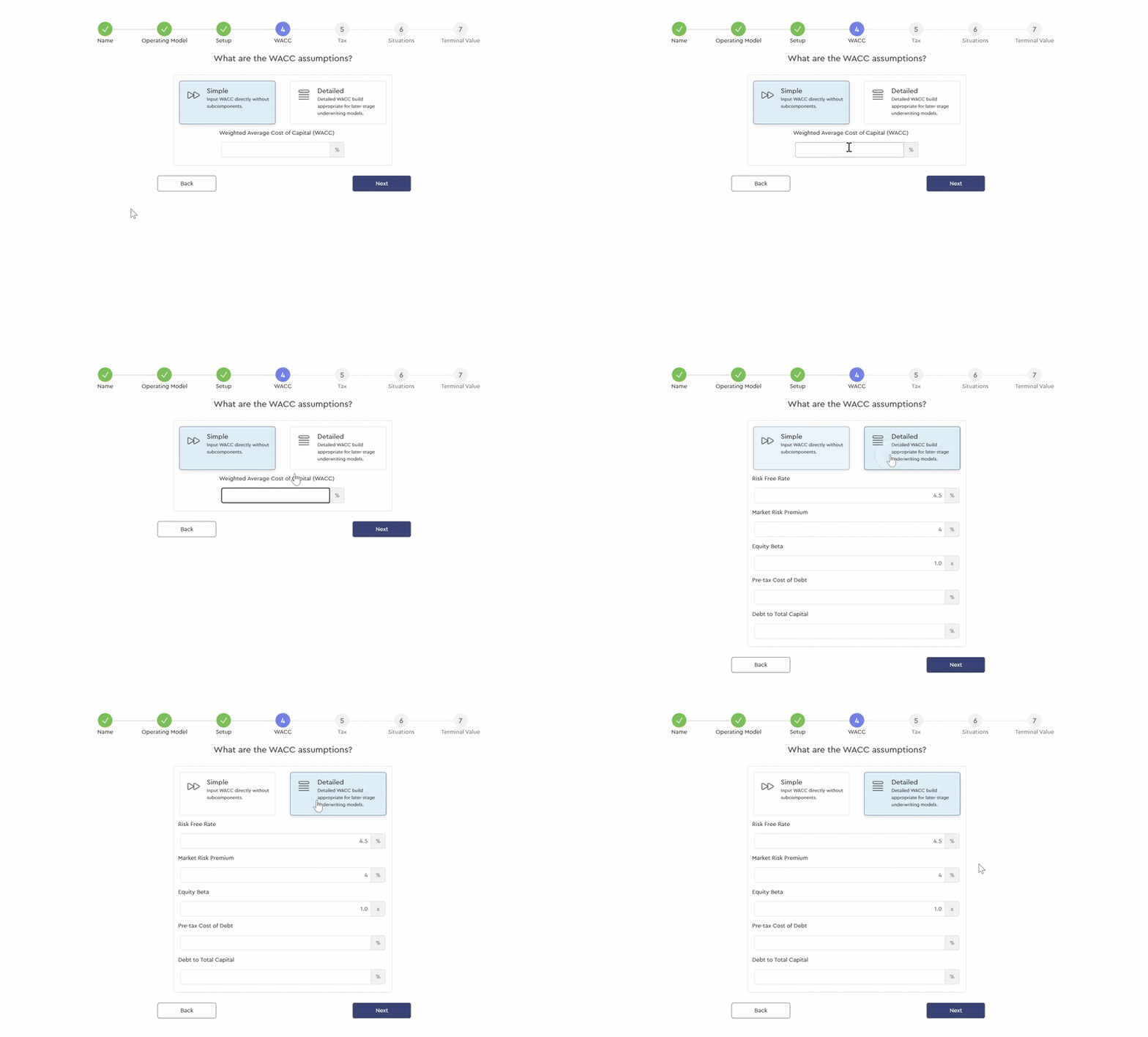
Mosaic now allows users to input a simple WACC assumption directly within the DCF Wizard—eliminating the need to build out the full CAPM framework when a high-level assumption is sufficient. When creating a new DCF model, navigate to the 4th step, “WACC” in the wizard. Then, click the “Simple” menu option to enter a simple WACC percentage.
For users who prefer a more detailed build, Mosaic continues to support each WACC subcomponent. Select the “Detailed” option to input: the risk-free rate, market risk premium, equity beta, pre-tax cost of debt, and debt to total capital.
Credit Statistics are Now Supported in Summary Financials
When customizing the “Summary Financials” section within the “Summary” output tab, Mosaic now incorporates credit statistic line items, including Ending Balances, Leverage Metrics, and Coverage Metrics. The credit statistics will populate directly underneath the operating and FCF builds (or standalone if preferred). This update provides greater flexibility in configuring the “Summary Financials” output to match a team’s reporting preferences.

Deterministic
Models, Enhanced by AI
Learn more about how AI is selectively integrated into Mosaic’s deterministic modeling platform
Built for Enterprise Trust
Protecting your data is core to how Mosaic is built. Mosaic is enterprise-ready and secure by design.
By the Numbers
Experience the platform live
Reach out to learn how finance professionals worldwide are leveraging Mosaic to work more efficiently.
.avif)