Platform Updates: August 2026
Solve for Target Returns with Reverse LBO
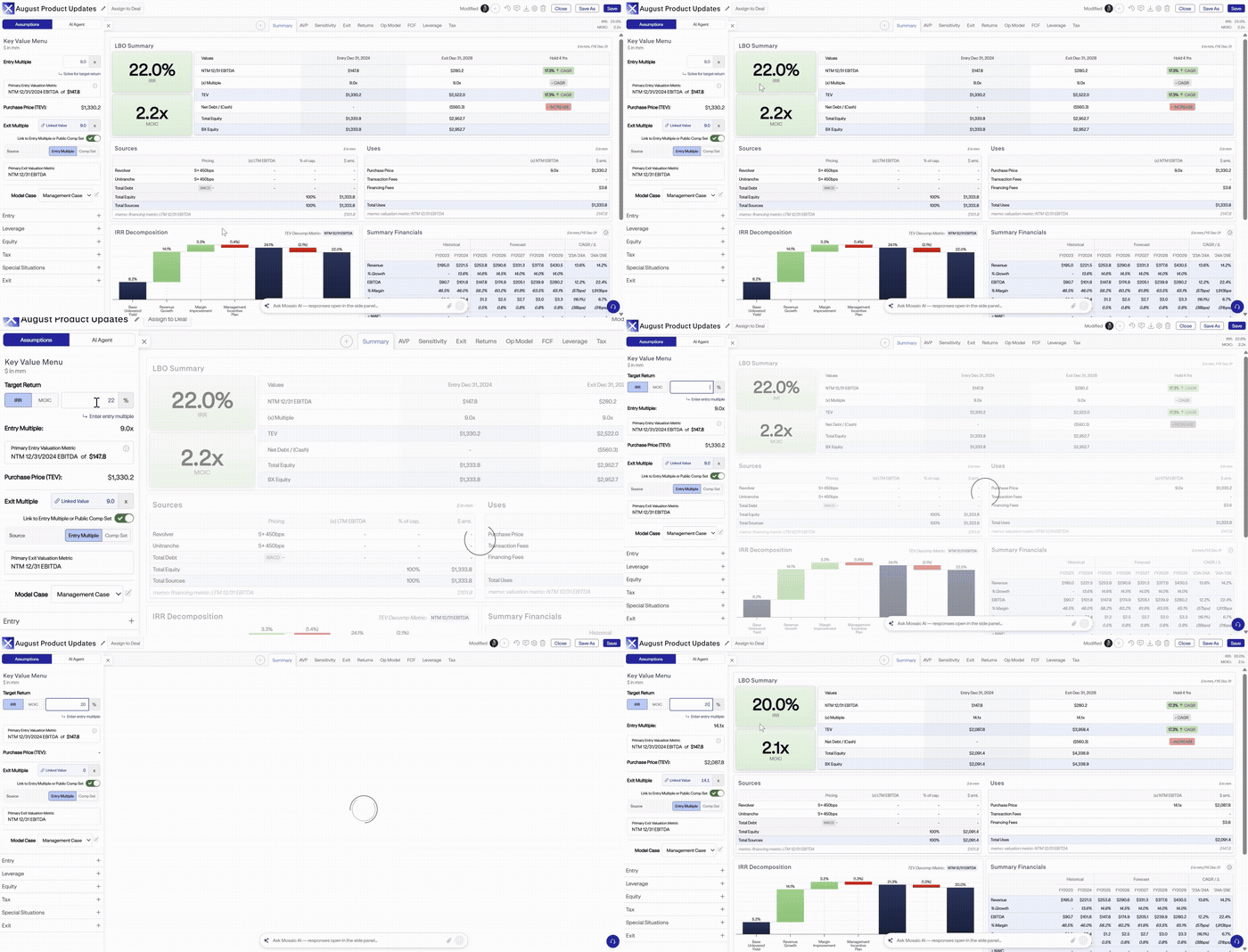
Mosaic supports solving for a target return directly within a model’s Entry assumptions. Within the model wizard or Key Value Drivers panel, users can specify a target IRR or MOIC, and Mosaic will solve for the required entry multiple, purchase price, or bid premium needed to achieve that return.
While Reverse LBO is enabled, the solved value automatically updates as other model assumptions change, making it easy to evaluate what entry valuation supports a target return as the underwriting evolves.
Split Interest Payments Between Cash + PIK
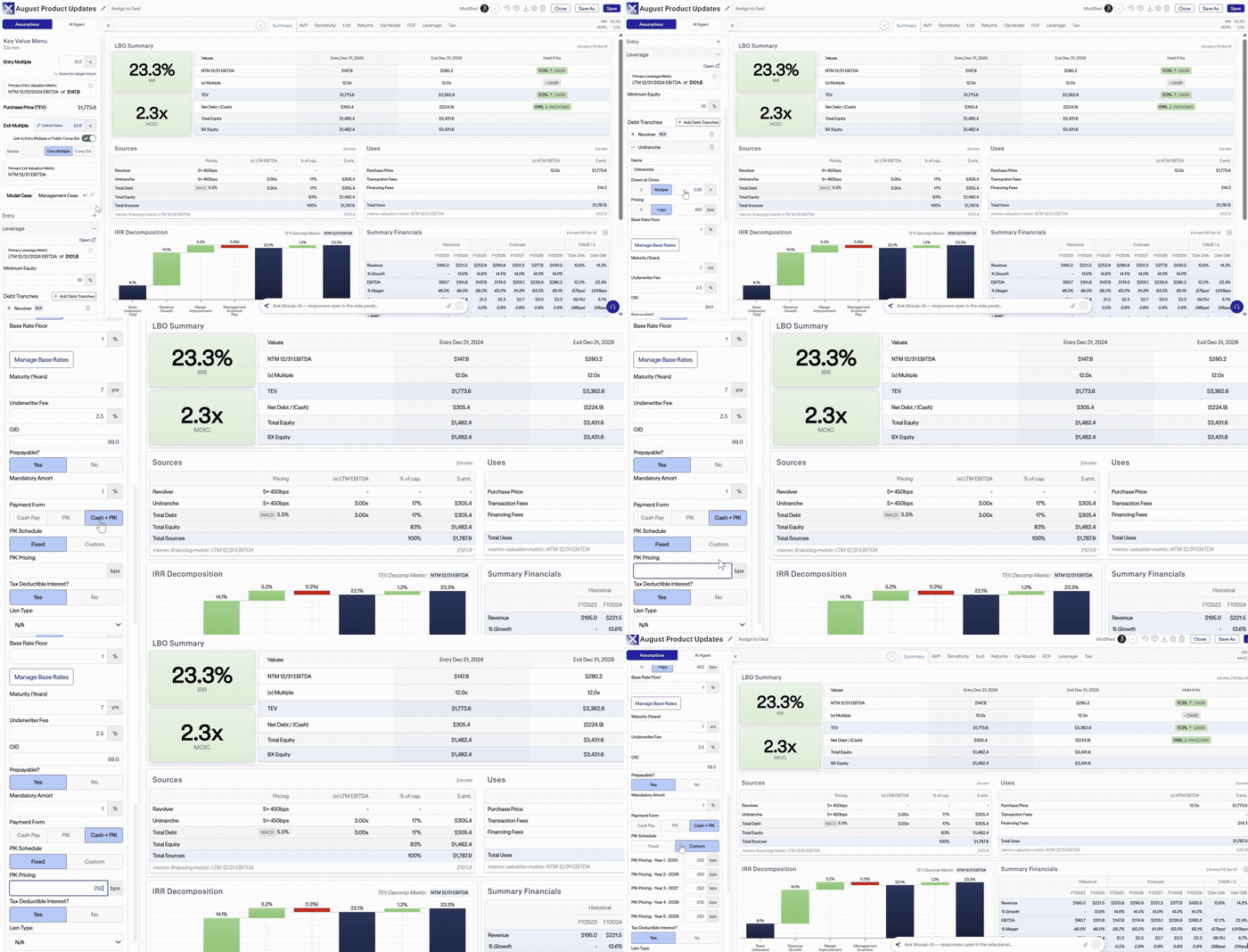
Interest payments can be split between cash and PIK within the same debt tranche, providing greater flexibility to model different payment profiles.
To configure a split payment, select the relevant debt tranche and choose Cash + PIK under the Payment Form menu. Then, specify the portion of interest attributed to PIK versus cash using either a percentage or basis points. PIK payments can remain fixed throughout the hold period or vary by year using the PIK Schedule.
Add Covenant Tests to LBO and Credit Models
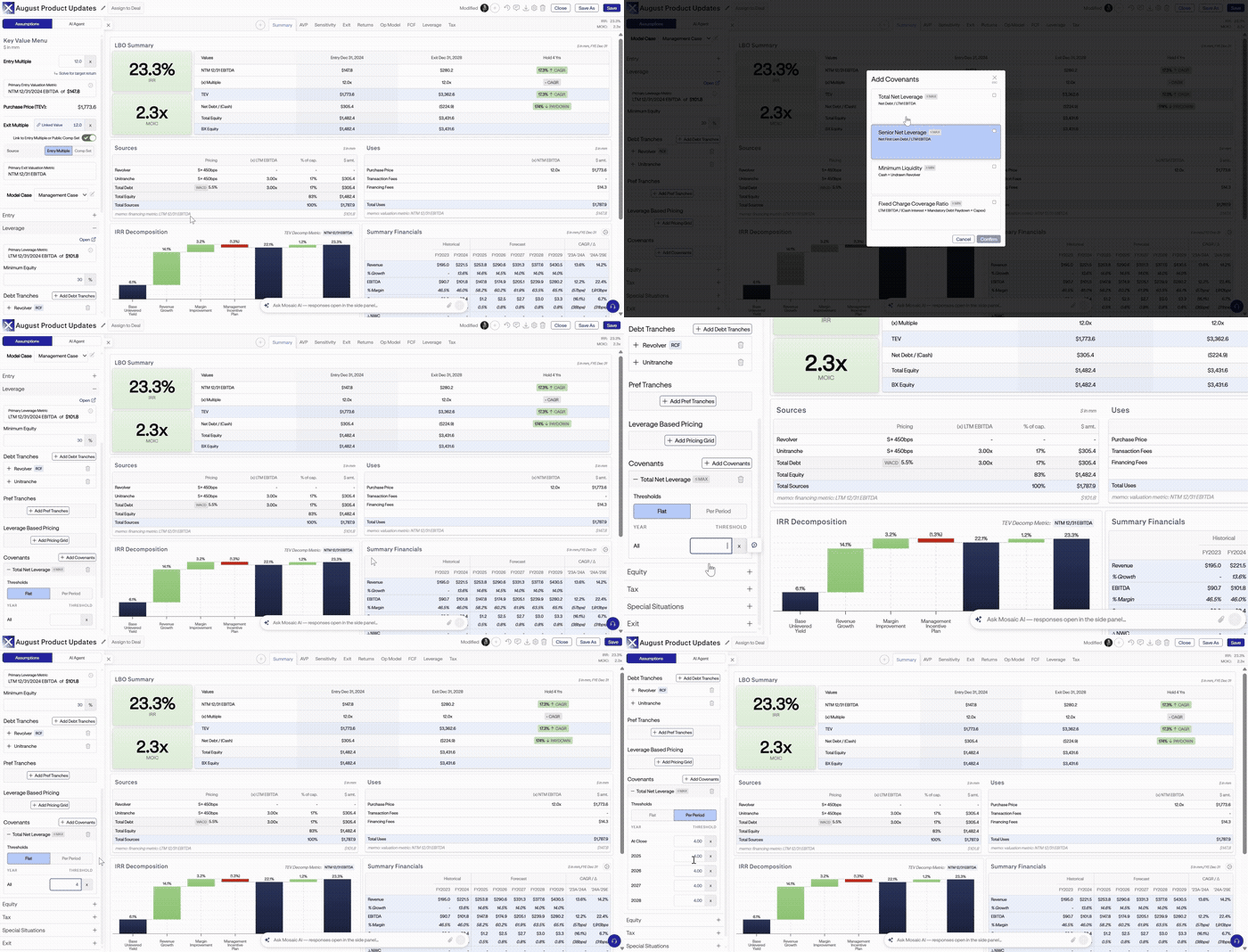
Covenant tests can be added directly to the debt schedule of any LBO or Credit model. Mosaic currently supports four covenant tests:
• Total Net Leverage: Net Debt / LTM EBITDA
• Senior Net Leverage: Net First Lien Debt / LTM EBITDA
• Minimum Liquidity: Cash + Undrawn Revolver
• Fixed Charge Coverage Ratio: LTM EBITDA / (Cash Interest + Mandatory Debt Paydown + Capex)
After selecting a covenant test, set the applicable threshold, which can remain constant throughout the hold period or vary by period. This makes it easier to track covenant compliance directly alongside a deal’s debt schedule.
Sensitize Purchase Price
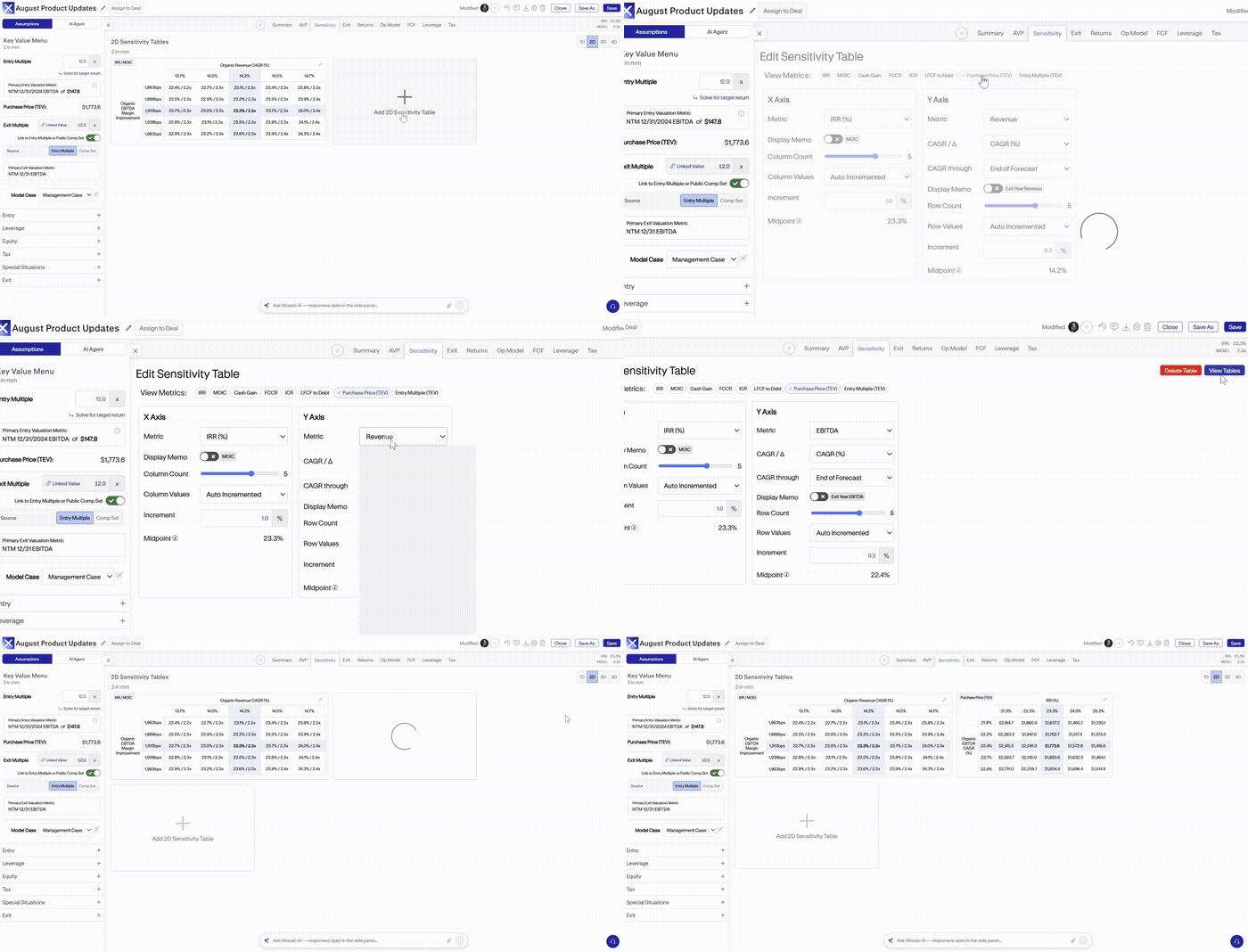
Purchase price can be sensitized directly within the Sensitivity tab of any completed model. To create a new purchase price sensitivity, click the "+" button on the Sensitivity tab and then select "Purchase Price" next to "View Metrics". Next, select the desired X- and Y- axis metrics which can include any transaction assumption or operating model line item.
New Accretion / Dilution Sensitivities
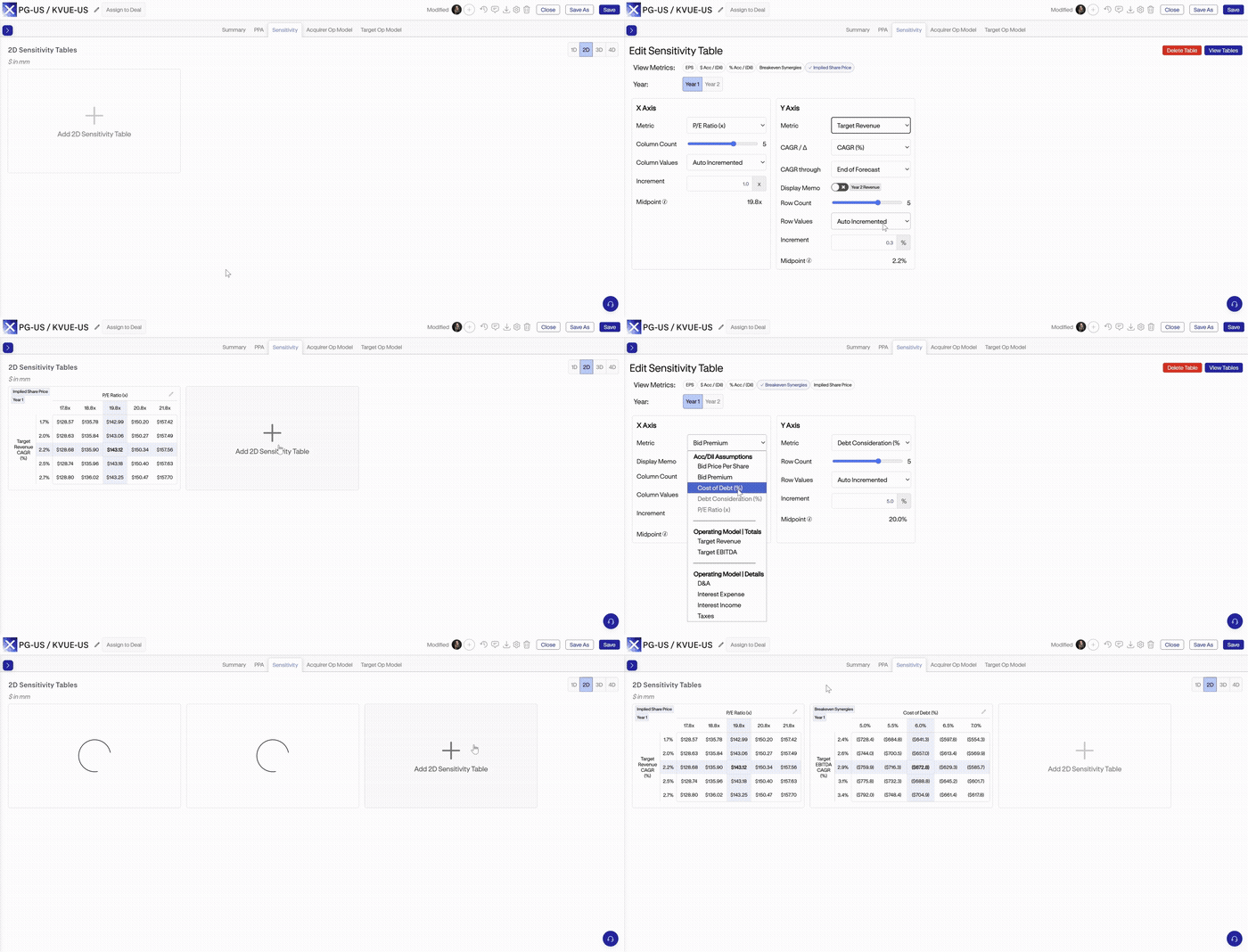
Accretion / Dilution models support sensitivities for implied share price and breakeven synergies, providing additional ways to evaluate transaction outcomes across a range of assumptions.
To create either sensitivity, click the "+" button within the Sensitivity tab of any Acc / Dil model and select the relevant metric. From there, choose the applicable year and X- and Y-axis metrics, which can include any transaction assumption or operating model line item.
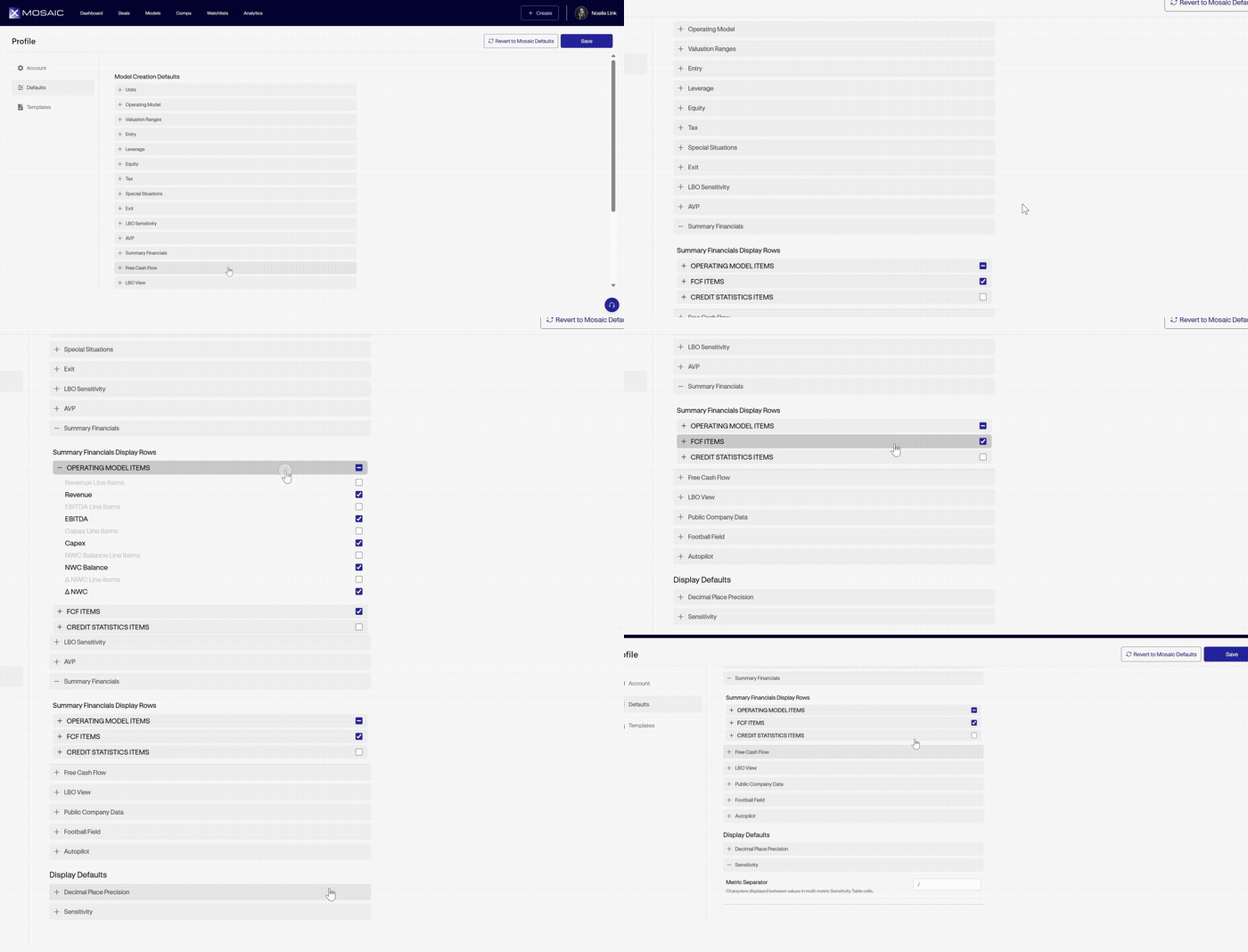
Customize Displays for Summary Financials and Sensitivity Tables in Defaults
Users can select the default display rows for the "Summary Financials" table in the Summary tab of any completed model. To set the line item display defaults, navigate to "My Profile" in the top right corner of the homepage. Then click "Defaults" and navigate to the "Summary Financials" section. Within "Summary Financials", choose between operating model line items, FCF display rows, and credit statistics to include in each model.
A new default is also available for sensitivity tables: users can define the separator shown in multi-metric sensitivity table cells under "Display Defaults".
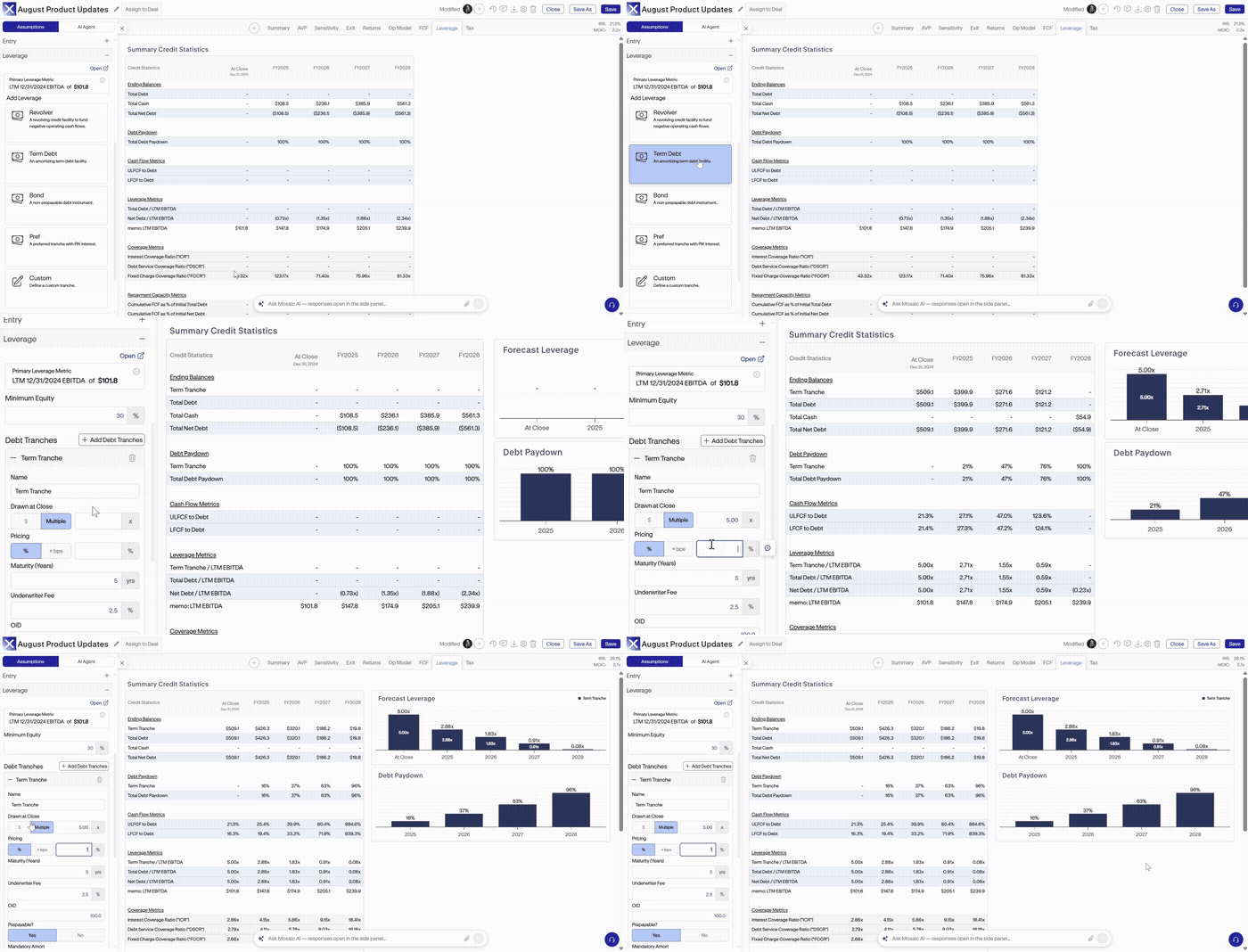
Automatically Display Forecast Leverage and Debt Paydown
When leverage is added to a deal (post initial model creation) in the Key Value Drivers panel, Forecast Leverage and Debt Paydown charts are automatically added to the "Leverage" tab.
This ensures the relevant leverage outputs are immediately available when debt is introduced after initial model creation.
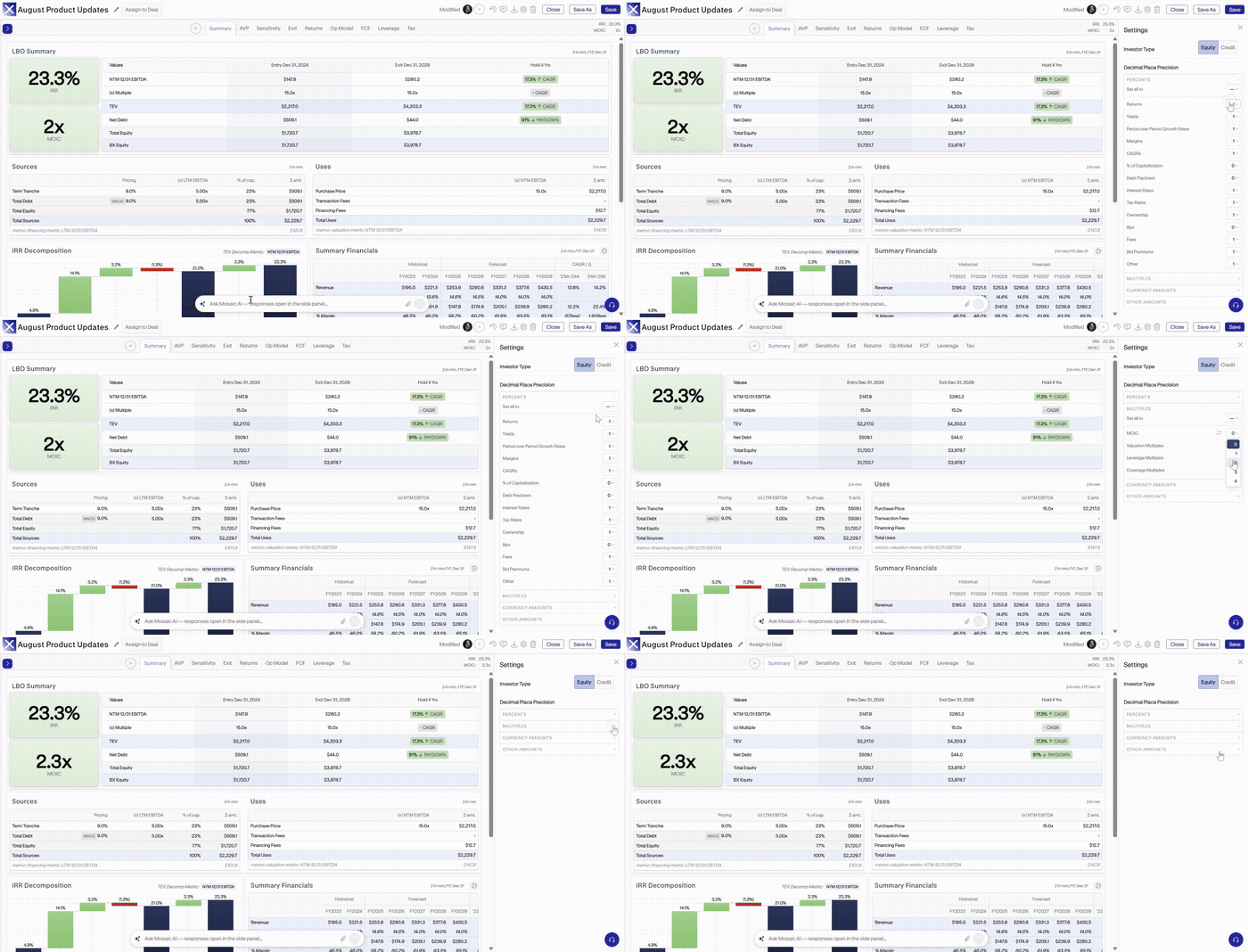
Customize Decimal Place Precision
Decimal place precision can be customized across model summary outputs, including percentages, multiples, currency amounts, and other amounts.
Precision can be adjusted within the Settings menu of any completed model or established as a default across models by navigating to My Profile → Defaults → Display Defaults.
Set Exit Timing by Hold Period
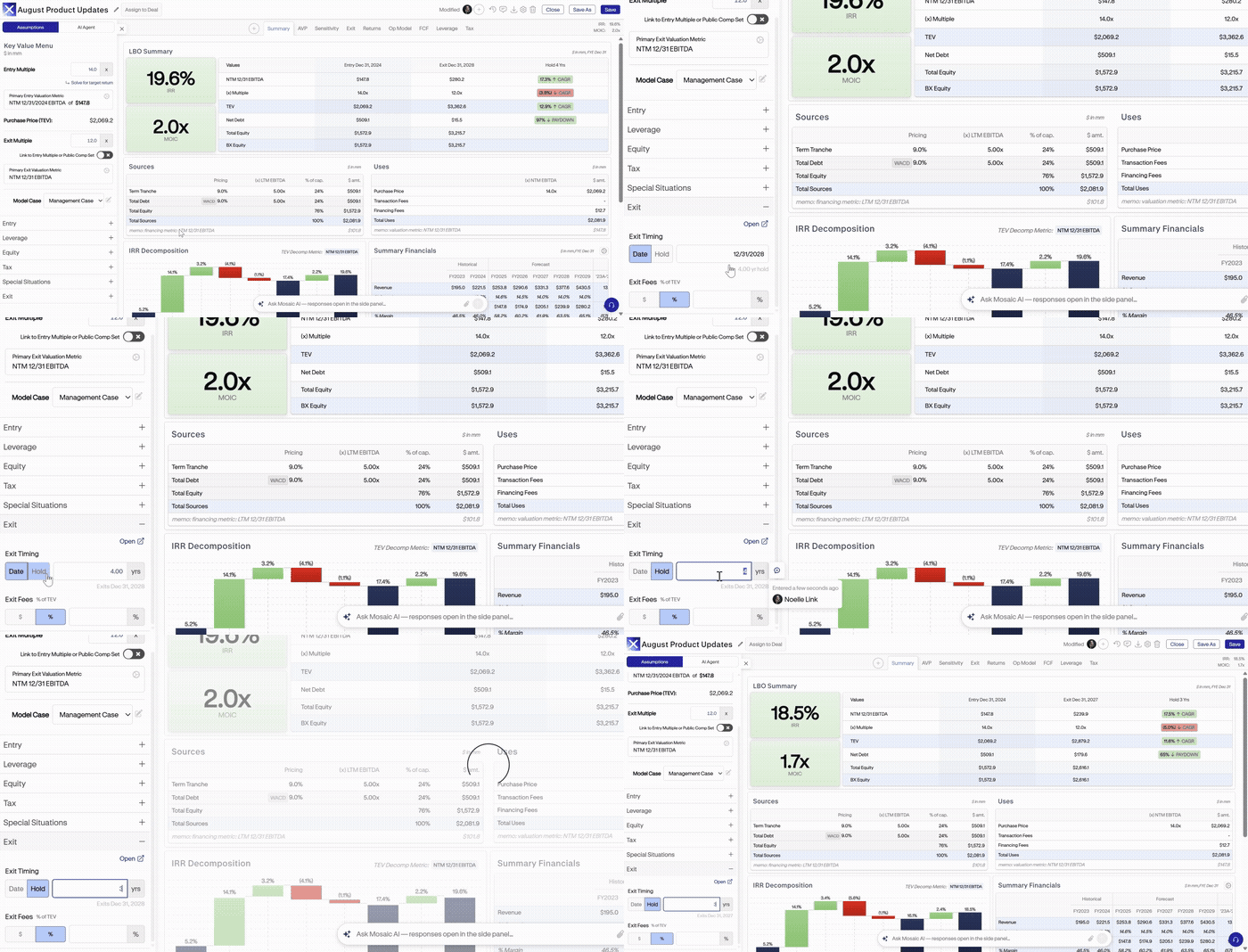
Exit timing can be defined using either a specific exit date or a hold period, providing greater flexibility in setting and evaluating investment horizons.
Select the preferred exit timing method during initial model creation or update it later through the Key Value Drivers panel. Exit timing can also vary by case: hover over the field within Key Value Drivers and select the case icon to set different assumptions across cases.
Add Leverage-Based Pricing Grids
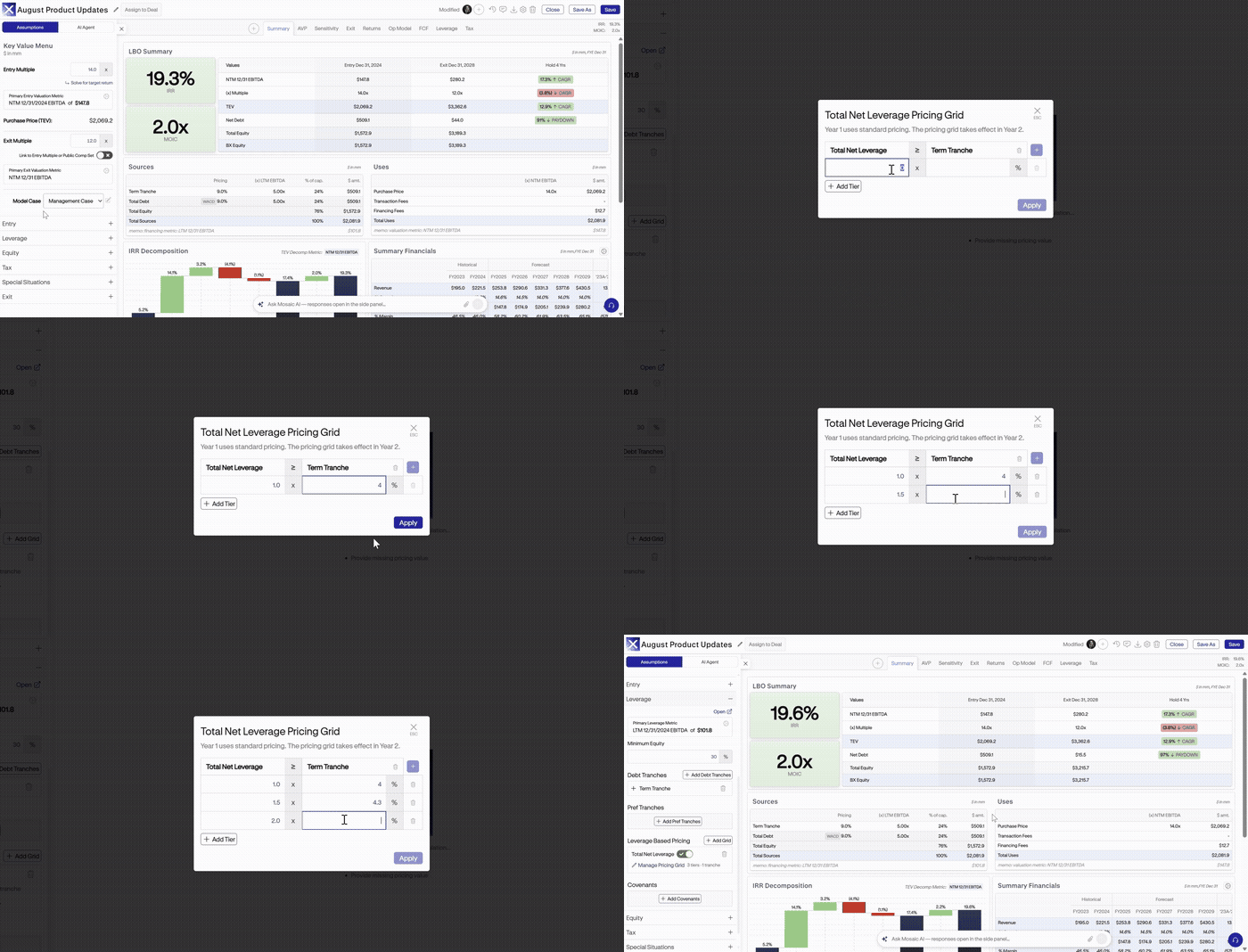
Pricing grids are available for debt tranches within LBO and Credit models, allowing interest rates to adjust dynamically based on leverage levels. To add a pricing grid, select "Add Pricing Grid" either within the Leverage tab of the model wizard or under the "Leverage" dropdown in the Key Value Drivers panel. In Credit models, this option can be found under "New Debt". Pricing grids can be based on either Total Net Leverage (Net Debt / LTM EBITDA) or Senior Net Leverage (Net First Lien Debt / LTM EBITDA). Note that Senior Net Leverage pricing grids are only available in models where senior debt is present.
From there, define the applicable leverage threshold and pricing for each tier. Once applied, the pricing grid is incorporated directly into the model, allowing debt pricing to update automatically as leverage moves between tiers.
Deterministic
Models, Enhanced by AI
Learn more about how AI is selectively integrated into Mosaic’s deterministic modeling platform
Built for Enterprise Trust
Protecting your data is core to how Mosaic is built. Mosaic is enterprise-ready and secure by design.
By the Numbers
Experience the platform live
Reach out to learn how finance professionals worldwide are leveraging Mosaic to work more efficiently.
.avif)